Formatting SD (Windows)
Required Reading
这是一个适用于为 3DS 准备的 SD 卡的格式化教程。
如果 3DS 已经识别到了 SD 卡,那么就不需要做这个教程了。
本节教程仅限 Windows 用户。 如果你没有在用 Windows,那么请看看格式化 SD 卡(通过 Linux 操作系统)或格式化 SD 卡(通过 Mac 操作系统) 。
What You Need
- For all SD card sizes: The latest version of SD Formatter
- For SD cards 64GB or larger only: The latest version of guiformat
Instructions
Section I - SD Card Formatter
将你的 SD 卡插入到电脑
如果 SD 卡上有一些文件或文件夹,请将它们全部复制到你的电脑上
解压下载到的
.zip文件,然后使用管理员权限打开SD Card Formatter Setup(.exe文件),按照提示安装程序在开始菜单中找到
SD Card Formatter,然后打开它将 “Select card” 一行选择为你的 SD 卡盘符
DANGER
请确保你选对了驱动器盘符,否则你可能会把别的驱动器格式化了!
在“Volume label”一行随便输入一些东西
确保“Quick Format”被勾选
点击 “Format”
点击“OK”
等待格式化完成
点击“OK”
关闭 SD Card Formatter
If the SD card is 32GB or smaller and had any files and folders on it before the format, copy everything back from your computer
INFO
You're done formatting your SD card if it's 32GB or smaller.
Section II - guiformat (ONLY for 64GB or larger)
Run
guiformat.exeSelect your SD card's drive letter for "Drive"
DANGER
请确保你选对了驱动器盘符,否则你可能会把别的驱动器格式化了!
Select a size for "Allocation unit size"
- If the SD card is 64GB, choose 32768
- If the SD card is larger than 64GB, choose 65536
在“Volume label”一行随便输入一些东西
确保“Quick Format”被勾选
Click "Start"
点击“OK”
等待格式化完成
点击“Close”
如果先前你从 SD 卡上复制了一些文件或文件夹到电脑上,请将它们全部复制回 SD 卡
问题排查
guiformat shows the error "Failed to open device: GetLastError()=32"
- Close everything that may be using the SD card, such as any File Explorer windows.
- If this issue persists, try reformatting the card to NTFS in File Explorer, close that window when it's done, and re-attempt the guiformat process.
guiformat shows the error "GetLastError()=1117"
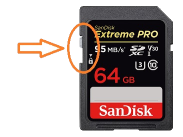
- Your SD card write-protection switch may be enabled. The lock must be flipped upwards to allow writing to the SD card (including formatting).
SD card remains undetected by console or continues to display the wrong capacity after formatting
- Your SD card may be partitioned or have unallocated space. Follow the instructions here to reformat your SD card.