Installing boot9strap (ntrboot)
Required Reading
你需要一个支持 BT 协议的下载程序,如 qBittorrent 或 Deluge 来下载本教程中的磁力链接 。
What You Need
- A magnet that triggers the sleep mode of your console (if using a folding style console)
- Your ntrboot flashed flashcart
- The latest release of SafeB9SInstaller (direct download)
- The latest release of boot9strap (direct download)
- The latest release of Luma3DS (the Luma3DS
.zipfile)
Instructions
Section I - Prep Work
将主机关机
将你主机的 SD 卡插入你的电脑
- This is the SD card from your 3DS, not the SD card from your flashcart
将 SafeB9SInstaller
.zip中的SafeB9SInstaller.firm复制到 SD 卡的根目录下,然后重命名为boot.firm- The root of the SD card refers to the initial directory on your SD card where you can see the Nintendo 3DS folder, but are not inside of it
在你主机 SD 卡根目录创建一个名为
boot9strap的文件夹从boot9strap
.zip压缩包中复制boot9strap.firm和boot9strap.firm.sha到你主机 SD 卡的/boot9strap/文件夹中INFO
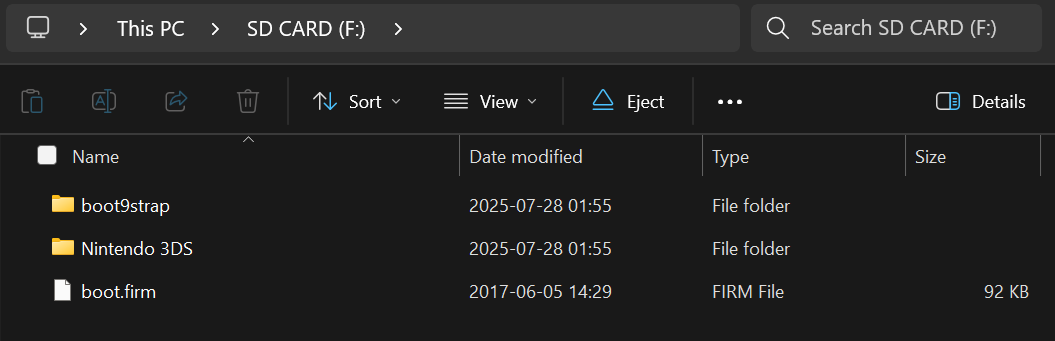
Reinsert your SD card into your console
Power on your console
Section II - ntrboot
- Use the magnet to find the spot on your console where the sleep sensor is triggered
- This step is not needed on the old 2DS (which has a sleep mode switch)
- 将主机关机
- Insert your flashcart into your console
- Place the magnet on your console to trigger the sleep sensor
- On old 2DS, you should instead enable the sleep mode switch
- 按住 “Start” + “Select” + “X” + “电源键” 几秒钟,然后放开
- It may take a few attempts to get this to work because the positioning is awkward
- 如果一切成功的话,你将自动进入 SafeB9SInstaller
- Remove the magnet from your console
- On old 2DS, you should instead disable the sleep mode switch
Section III - Installing boot9strap
In this section, you will install custom firmware onto your console.
- When prompted, input the key combo given on the top screen to install boot9strap
- If a step on the lower screen has red-colored text, and you are not prompted to input a key combo, follow this troubleshooting guide
- Once it is completed, force your console to power off by holding down the power button
- Your console will only boot to the SafeB9SInstaller screen until the next section is completed
Section IV - Configuring Luma3DS
将你主机的 SD 卡插入你的电脑
删除 SD 卡根目录下的
boot.firm文件Copy everything from the Luma3DS
.zipto the root of your SD cardReinsert your SD card into your console
Power on your console
你的主机应该会在开机后进入 Luma3DS 配置菜单
- Luma3DS 配置菜单是 Luma3DS 自定义固件的设置选项,其中包含许多可用于个性化或调试的功能
- 就本指南而言,请保留这些选项为默认设置(不要勾选或取消勾选任何内容)
- 如果您的主机在尝试开机时显示白色通知 LED 并随即关机,请确保已将 Luma3DS 的
boot.firm文件放置于 SD 卡的根目录下(该文件位于Luma3DSvX.X.X.zip压缩包内)
按下 “Start” 键保存设置并重启
此时,您的主机将默认启动到 Luma3DS。
- Luma3DS 的外观与普通的 HOME 菜单没有任何区别。如果您的主机已启动进入 HOME 菜单,则说明它正在运行自定义固件。
- 在下一页中,您将安装有用的自制应用程序以完成设置。
TIP
Continue to Finalizing Setup
以下是一个恢复烧录卡的可选章节(这样可以使你烧录卡能够正常使用)
请注意,Acekard 2i 烧录卡在被写入 ntrboot 漏洞后,仍然能够正常使用并启动 .nds 文件。 不过,这只适用于 NDS 或者破解了某种破解的 3DS! 在写入 ntrboot 漏洞到 Acekard 2i 烧录卡后,它将无法在 DSi 或未破解的 3DS 上使用并运行 .nds 文件
请不要在完成以上章节之前进行下面的操作。
Section V - Removing ntrboot
What You Need
- The latest release of ntrboot_flasher (
ntrboot_flasher.firm) - The flashrom backup corresponding to your flashcart
- Note that if you followed Flashing ntrboot (3DS Multi System), the flashrom backup already exists in the correct location and does not need to be downloaded
- Note that if you followed Flashing ntrboot (3DS Single System) or Flashing ntrboot (NDS), the flashrom backup already exists on your flashcart's SD card and should be copied to the location specified below
- If you do not know which HW revision you have, just try each for your cart of them. 只有正确的版本才可以在主菜单中启动烧录卡,刷入错误的版本不会导致烧录卡损坏
| Flashcart | Hardware Revision | Flashrom |
|---|---|---|
| Ace3DS X | N/A | |
| Acekard 2i | HW 81 | - Acekard_2i_(HW_81)-Flashrom.zip |
| Acekard 2i | HW 44 | - Acekard_2i_(HW_44)-Flashrom.zip |
| DSTT | Missing | |
| Infinity 3 R4i | HW A5 | - R4i_Gold_3DS_(HW_A5)-Flashrom.zip |
| R4 3D Revolution | HW A6 | - R4i_Gold_3DS_(HW_A6)-Flashrom.zip |
| R4i Gold 3DS Deluxe "Starter" | Missing | |
| R4i Gold 3DS | HW 4 | - R4i_Gold_3DS_(HW_4)-Flashrom.zip |
| R4i Gold 3DS | HW 5 | Missing |
| R4i Gold 3DS | HW 6 | Missing |
| R4i Gold 3DS | HW 7 | Missing |
| R4i Gold 3DS | HW 8 | - R4i_Gold_3DS_(HW_8)-Flashrom.zip |
| R4i Gold 3DS | HW D | - R4i_Gold_3DS_(HW_D)-Flashrom.zip |
| R4i Gold 3DS Plus | N/A | |
| R4i Gold 3DS RTS | HW A5 | - R4i_Gold_3DS_(HW_A5)-Flashrom.zip |
| R4i Gold 3DS RTS | HW A6 | - R4i_Gold_3DS_(HW_A6)-Flashrom.zip |
| R4i Gold 3DS RTS | HW A7 | - R4i_Gold_3DS_(HW_A7)-Flashrom.zip |
| R4i Ultra | - R4i_Ultra-Flashrom.zip | |
| R4i-SDHC 3DS RTS | - R4i-SDHC_3DS_RTS_B9S-Flashrom.zip | |
| R4i-SDHC B9S | - R4i-SDHC_3DS_RTS_B9S-Flashrom.zip | |
| R4iSDHC GOLD Pro 20XX from r4isdhc .com | - R4iSDHC.com_20XX-Flashrom.zip | |
| R4iSDHC RTS LITE 20XX from r4isdhc .com | - R4iSDHC.com_20XX-Flashrom.zip | |
| R4iSDHC Dual-Core 20XX from r4isdhc .com | - R4iSDHC.com_20XX-Flashrom.zip |
Instructions
- 将主机关机
- 将你的 SD 卡插入到电脑
- This is the SD card from your 3DS, not the SD card from your flashcart
- 在 SD 卡根目录创建一个名为
ntrboot的文件夹 - 从烧录卡备份
.zip压缩包中复制.bin文件到你的 SD 卡的/ntrboot/文件夹 - 在SD卡的
luma文件夹里创建payloads文件夹 - 复制
ntrboot_flasher.firm到 SD 卡的/luma/payloads/文件夹中 - Reinsert your SD card into your console
- Insert your ntrboot compatible DS / DSi flashcart into your console
- 开机时按住 “Start” 键启动 ntrboot_flasher
- 请仔细阅读警告信息
- 按 “A” 键继续
- 选择对应你的烧录卡
- If you do not see your flashcart in the list at the top, read the bottom screen for more info on each option
- 选择 “Restore Flash”
- 按 “A” 键继续
- 等待测试完成
- 按 “A” 键返回主菜单
- Press (B) to power off your console