Installing boot9strap (SSLoth-Browser)
Technical Details (optional)
为了通过浏览器进行破解,我们需要通过一些手段来绕过系统版本检查,因为它会阻止版本非为最新的系统使用浏览器。
这里有一个公共的代理服务器可供使用,它将会利用 SSLoth 漏洞来绕过版本检查。
一旦更新检查被成功绕过,我们就可以通过一个漏洞页面来完成接下来的任务。
关于本页所使用漏洞的技术细节,请见这里(SSLoth) 和这里(universal-otherapp)。
Compatibility Notes
SSLoth 允许目前系统版本在 11.13.0 及其以下的主机绕过浏览器版本检查,然后就可以使用到利用 universal-otherapp 的方法了,如 new-browserhax 或 old-browserhax(兼容 11.4.0 至 11.13.0 的所有区域主机)
What You Need
- The latest release of SafeB9SInstaller (direct download)
- The latest release of boot9strap (direct download)
- The latest release of Luma3DS (the Luma3DS
.zipfile) - The latest release of universal-otherapp (
otherapp.bin)
Instructions
Section I - Prep Work
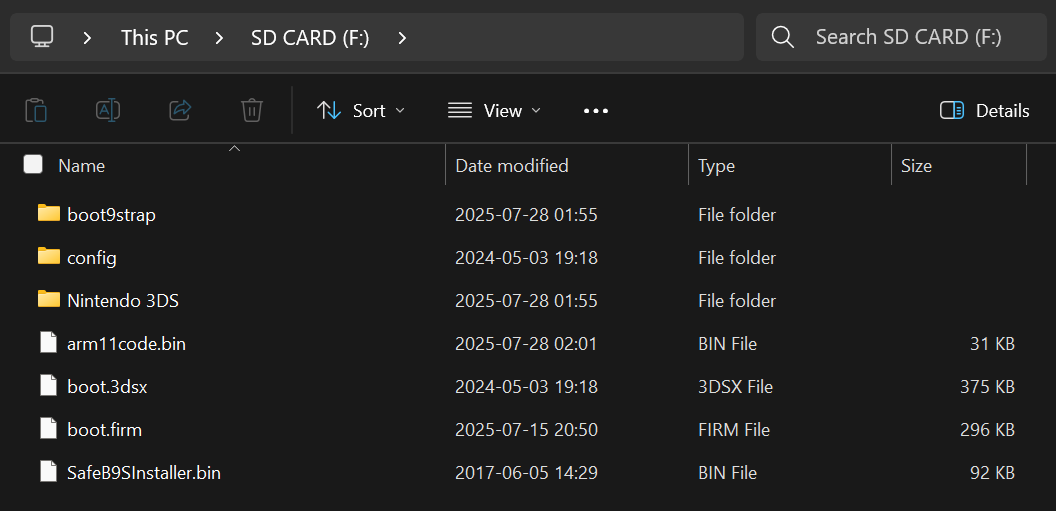
本节中,你将会复制一些触发 browserhax 和 universal-otherapp 所需要的文件。
- 将主机关机
- 将你的 SD 卡插入到电脑
- 复制
otherapp.bin到你 SD 卡的根目录下,然后重命名为arm11code.bin- The root of the SD card refers to the initial directory on your SD card where you can see the Nintendo 3DS folder, but are not inside of it
- If you do not see the
.binextension, do not add it to the end of the filename
- Copy everything from the Luma3DS
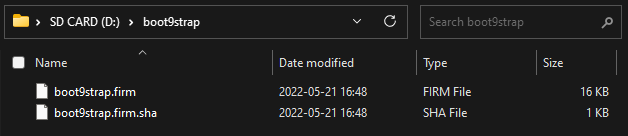
.zipto the root of your SD card - 在 SD 卡根目录创建一个名为
boot9strap的文件夹 - 从boot9strap
.zip文件中复制boot9strap.firm和boot9strap.firm.sha到你SD卡的/boot9strap/文件夹中 - 从 SafeB9SInstaller
.zip压缩包中复制SafeB9SInstaller.bin到 SD 卡根目录下 - Reinsert your SD card into your console
- Power on your console
INFO
INFO
Section II - SSLoth
本节中,你将更改主机的网络连接设置,设置一个代理服务器来绕过浏览器的版本检查,允许浏览器在系统没有更新至最新的情况下运行。 这将让你能够在下一步中访问浏览器漏洞页面。
INFO
如果您尚未操作,请确保您的主机已设置好可用的互联网连接。
TIP
你也可以点击这里查看本节图片版的操作示意。
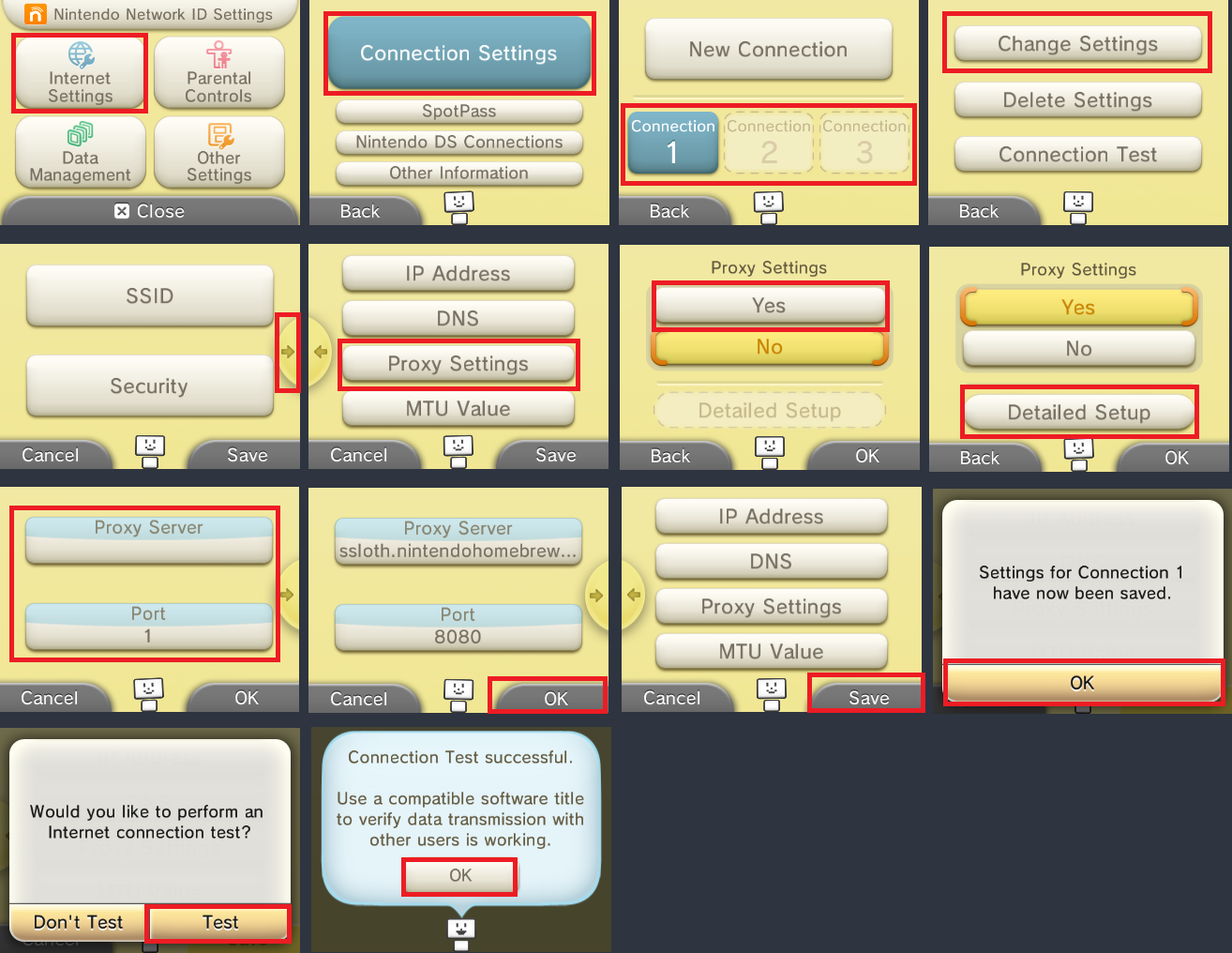
打开系统设置(本体設定 / System Settings)
进入“互联网设置(インターネット設定 / Internet Settings)” -> “连接设置(接続設定 / Connection Settings)”
点击您的网络连接槽位,然后进入“更改设置(設定の変更 / Change Settings)” -> “下一页(右箭头 / Next Page)” -> “代理设置(プロキシ設定 / Proxy Settings)”
设置“代理服务器 (Proxy)”为“是(する / Yes)”,然后点击
详细设置(詳細設定 / Detailed Setup)将代理服务器设置为
ssloth.nintendohomebrew.com,端口设置为8080点击“OK”,然后点击“保存(Save)”
当提示时,点击“测试(Test)”以执行连接测试
- 测试应成功
点击“OK”继续
点两次 “返回”,然后点“关闭”来返回主菜单。
Section III - Launching SafeB9SInstaller
本节中,你将启动浏览器破解漏洞,它将使用 universal-otherapp 启动 boot9strap(自制固件)安装程序。
On the HOME Menu, press the Left and Right shoulder buttons at the same time to open the camera
- If you are unable to open the camera, open the Internet Browser and manually type the URL instead (
https://zoogie.github.io/web/nbhax/)
- If you are unable to open the camera, open the Internet Browser and manually type the URL instead (
- When you get a prompt with error code
012-1511,032-1809or032-1820, press (A) to allow the connection - If you get a crash or a different error code, follow this troubleshooting guide
DANGER
If you receive a prompt telling you to update your console, STOP! Redo Section II from the beginning and ensure you have set up the proxy correctly.
- When you get a prompt with error code
点击“PROCEED TO HAXX”
如果一切成功的话,你将自动进入 SafeB9SInstaller
- If you get an error, follow this troubleshooting guide
Section IV - Installing boot9strap
In this section, you will install custom firmware onto your console.
When prompted, input the key combo given on the top screen to install boot9strap
- If a step on the lower screen has red-colored text, and you are not prompted to input a key combo, follow this troubleshooting guide
Once it is complete, press (A) to reboot your console
你的主机应该会在开机后进入 Luma3DS 配置菜单
- Luma3DS 配置菜单是 Luma3DS 自定义固件的设置选项,其中包含许多可用于个性化或调试的功能
- 就本指南而言,请保留这些选项为默认设置(不要勾选或取消勾选任何内容)
- 如果您的主机在尝试开机时显示白色通知 LED 并随即关机,请确保已将 Luma3DS 的
boot.firm文件放置于 SD 卡的根目录下(该文件位于Luma3DSvX.X.X.zip压缩包内)
按下 “Start” 键保存设置并重启
Section V - Restoring default proxy
本节中,你将把主机的网络设置恢复到原来的状态。
- 打开 系统设置(本体設定 / System Settings)
- 进入
Internet Settings→Connection Settings - 点击你的网络连接配置,然后进入
Change Settings→Next Page (右箭头)→Proxy Settings - 将 “Proxy Settings” 设置为 “No”
- 点击 OK,然后点击 Save
- 当系统提示时,点击 “Test” 进行网络连接测试
- 测试应该会成功
- 将主机关机
此时,您的主机将默认启动到 Luma3DS。
- Luma3DS 的外观与普通的 HOME 菜单没有任何区别。如果您的主机已启动进入 HOME 菜单,则说明它正在运行自定义固件。
- 在下一页中,您将安装有用的自制应用程序以完成设置。
TIP
Continue to Finalizing Setup